Human review
Some things only a person can judge. Review keeps queues of traces and experiment rows for people to score against a rubric. Their scores become scores like any other: on the trace or the experiment row, in the experiment's summary and the release gate, and, if you choose, as new dataset rows and as calibration for an LLM judge.
Open Review in the project. It opens the first queue; "Switch queue" picks another.
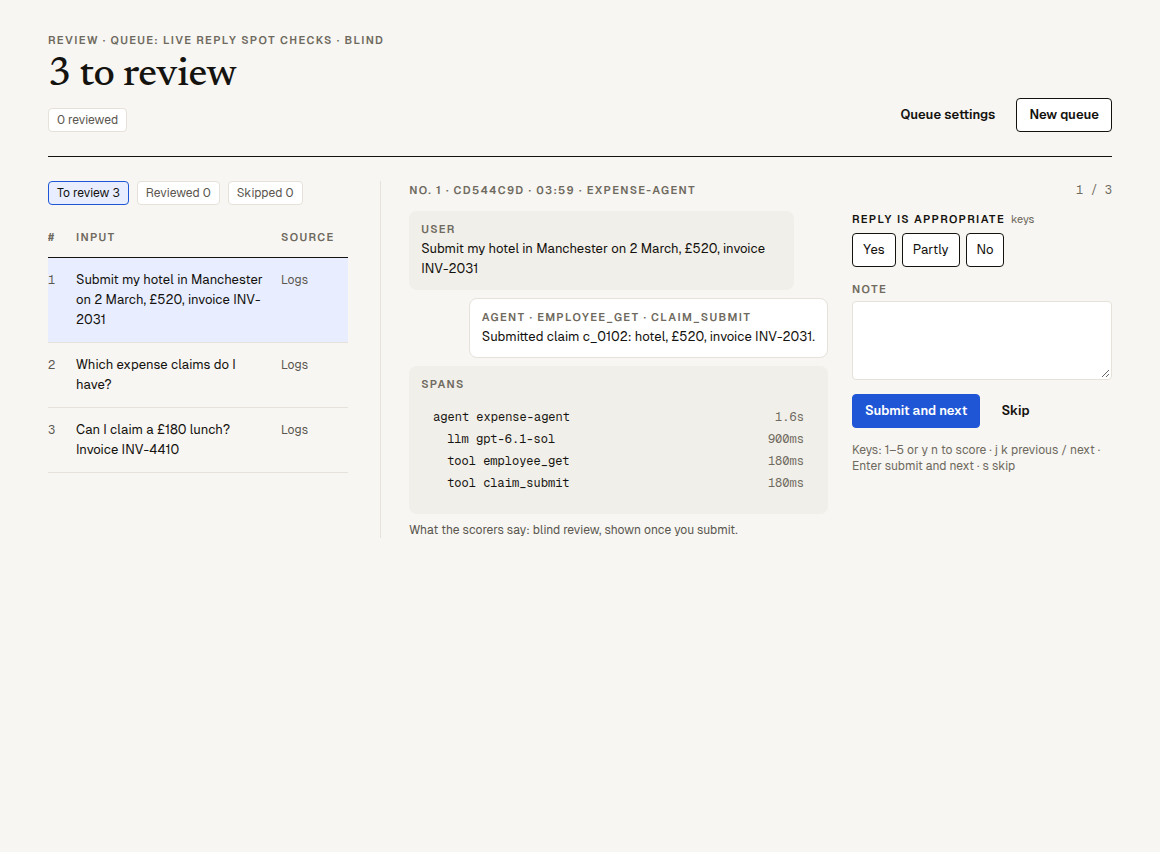
Create a queue
Click "New queue":
| Field | What it does |
|---|---|
| "Name" | The queue's name. |
| Rubric | The project's human scorers the reviewers fill in; tick "Required" for those that must be answered. No human scorer yet? Name one, pick "How it is scored" ("Yes / Partly / No", "1 to 5" or "Pass / Fail") and "Add scorer", or create one on the Scorers page. |
| "Note required", "Problem tags required" | Whether a review needs a note, or at least one problem tag. |
| "Blind: others' reviews and the automatic scores stay hidden until you submit" | So reviewers aren't swayed by the judge. |
| "Who reviews (none picked = anyone in the organization)" | A new item goes to the listed reviewer with the fewest waiting. |
| "Problem tags (one per line)" | The tags reviewers can pick: by default "Duplicate side effect", "Made-up facts", "Overreach", "Other". |
| "Add each review to a dataset" | Each review becomes a row of that dataset (source "Review"), with the answers, tags and note in its metadata. Reviewing an item again makes a new revision of the same row. |
| "Add each review to an LLM judge's calibration set" | Each review's score from a human scorer you pick becomes a calibration row of that LLM judge (calibration). |
| "Fill every day" | "Traces of the logs that match the filter" or "Experiment rows that match the filter", with a filter (say status = error or score.task_done < 0.5) and "At most a day" (1 to 500, 20 by default). The queue is filled once a day with what arrived since the day before, newest first. |
"Queue settings" changes them later; "Delete queue" archives it, and the scores and results already given stay.
Fill a queue
- In Logs: tick traces and "N selected → send to review", or "Send to review" on one trace.
- In an experiment: "Send to review" on a row.
- Pick the queue, or "A new queue…" with a name (it gets every human scorer and the default problem tags), and click "Send to this queue". An item is in a queue once; sending it again says it's already there. Up to 500 at a time.
- Or let "Fill every day" do it.
Review
The left side lists "To review" (yours and unassigned ones), with chips for the reviewed and skipped ones. The right side shows the item: the conversation (user, agent and its tool calls), the expected output, the data checks, the spans, "What the scorers say" (hidden while the queue is blind) and "Others' reviews", then "Your review": one button per choice (or a number for a wide range), the problem tags and a note.
"Submit and next" saves it; "Skip" leaves it for later; reviewing it again shows "Save changes".
Keys: a digit (1–5 on a five-point scale; the choice at that position otherwise) or y / n (the first or last choice) to score the field in focus · j k previous and next · Enter submit and next · s skip. Keys are ignored while you type in a field.
Where the scores go
A choice is scored from 1 (the first) down to 0 (the last); a range is scaled to 0–1. Each human scorer's score on an item is the mean over every reviewer in every queue, written:
- on the trace (its scores in Logs and in online scoring's numbers), or
- on the experiment row: the row's score, the experiment's summary and its release gate are worked out again (when the experiment has finished).
Human review is for the organization's members: a project token can't use it.