Organization and members
An account can belong to several organizations, with a separate role in each. This page shows how to sign up, invite people, change what they can do, and set the organization's limits.
Click "Organization" in the navigation. The settings have six tabs: "Members", "Policy", "Usage", "Billing", "Audit log" and "My CLI tokens". Usage and billing are on Billing and usage.
Your organizations
The organization page lists the organizations you belong to. Choose one and click "Switch organization". Only its projects and settings appear after switching; other browser tabs refresh too. A form left over from another organization cannot submit changes to the new one.
To open your own organization, enter a "New organization name" and click "Create your own organization". Even an account that joined only by invitation can do this. You become its owner on the Free plan; data, balances and settings from other organizations stay there. An account can own up to 10 organizations, subject to the platform's daily creation capacity. Sign-up's activation rules still apply to new accounts.
To join someone else's organization, ask its owner to invite your email and accept the invitation. Creating your own organization keeps your existing memberships.
Connected products such as Guard can ask you to choose an organization when signing in. "Create your own organization" there creates and selects it for that product; it does not change your current Review organization. Guard opens its own default project for an organization's first owner sign-in, and other members start with read-only Guard access.
Roles
An organization has two roles.
| Owner | Member | |
|---|---|---|
| Create projects; add tests; start and cancel runs; store secrets; connect repositories, images and test runners; create API tokens; switch on automatic runs | Yes | Yes |
| See members, the policy, usage and billing | Yes | Yes |
| Take over the automatic runs of someone who left | Yes | Yes |
| Invite and remove members, change roles | Yes | No |
| Change the organization policy | Yes | No |
| Set what the AI does by itself, and its spending caps ("Policy") | Yes | No |
| Read the audit log | Yes | No |
| Subscribe, change plan, top up, redeem credit codes and manage payment | Yes | No |
Whatever the role, a change that confirms, launches or spends something is made by a person signed in in the browser, or by the platform within what a person switched on. Auto-approve, for example, confirms drafts; it is set per project and on by default. The AI starts, re-runs, retests or resizes runs only as far as the owner allowed under "What the AI does by itself" (off by default), within its caps, and each of those actions goes in the audit log. A CLI token or the in-app assistant can read and draft, but can't confirm or start tests.
Invite someone
- On the "Members" tab, go to "Invite a member". (Owners only.)
- Enter "Their email" and choose the "Role": "Member" or "Owner".
- Click "Send invitation".
The invitation goes only to their email, and its link works once within 14 days. They open it, accept the Terms of Service and the Acceptable Use Policy, and click "Accept and sign in". They can also click "Continue with GitHub" or "Continue with Google" to accept it with that account; the invitation counts for the address you invited, whatever that account's own email is. Until then the invitation is listed under "Pending invitations", where you can revoke it with the × beside it. Sending another invitation to the same address replaces the one pending.
No email arrives?
If the platform has no mail service connected, the page says so and shows the invitation link after you send it: click "Copy link" and hand it over yourself. Someone who is already a member and whose sign-in has lapsed signs in on the sign-in page instead, with GitHub, Google or their email.
Sign up
A new email address signs up and gets its own organization on the Free plan, with you as its owner (see Pricing). Signing up needs an activation code: if you don't have one, email admin@nice2.io to ask for one.
- On the sign-in page, click "Continue with GitHub" or "Continue with Google"; or enter your "Work email", click "Send sign-in link", open the link in the email and click "Sign in".
- Under "Create your account", fill in "Your name (optional)" and "Organization name (optional)" if you like.
- Enter the "Activation code". Spaces around it and upper or lower case don't matter.
- Tick the box to agree to the terms and click "Create account and sign in".
A wrong code creates nothing. Check it and click again; the same sign-up keeps working for 15 minutes. After 5 tries on one sign-up, start again on the sign-in page. Signing in to an account you already have, or accepting an invitation, needs no code.
How members sign in
An account is its email address. On the sign-in page a member signs in with:
| Way | What it takes |
|---|---|
| "Continue with GitHub" / "Continue with Google" | A GitHub or Google account on which their address here is a verified email, or the account they accepted their invitation with. After the first time, that account keeps signing them in, even if its email changes. |
| "Send sign-in link" | A link sent to their address, which works once within 15 minutes (only when the platform has a mail service). |
| Their invitation link | The link from the invitation, once. |
The CLI signs in through the browser: see sign in from the CLI. Removing someone from their last organization also unlinks their GitHub and Google accounts.
Change a role
On the "Members" tab, pick "Owner" or "Member" in the person's "Role" column. It applies from their next request. An organization always keeps an owner: its only owner can't become a member or be removed until another member is made an owner.
Remove a member
- On the "Members" tab, click the bin in the person's row.
- Confirm.
They can no longer open the organization's projects, and what they could still reach it with is revoked at once:
- the test runners they paired,
- the project API tokens and the CLI tokens they made,
- their dev AI connections,
- their browser sessions.
The page lists what was revoked. Their past runs and reports stay. Automatic runs they switched on (a schedule, runs on push or pull request) stop starting runs and appear under "Left behind". Anyone in the organization can click "Take over", and from then on the runs start as that person. Until someone does, the owners get an email when one would have run, at most once a day per project. When an owner has switched "Ask me before the AI changes things" off under "What the AI does by itself", they go to an owner by themselves instead, and the audit log records it.
Organization policy
The "Policy" tab limits the organization's sandboxes. Owners change it; everyone can read it. Leave a field empty for the default, then click "Save".
| Field | Default | Range |
|---|---|---|
| "Sandboxes running at once" | 2 | 0 to 100, and no more than the plan allows |
| "Longest run (minutes)" | 120 | 1 to 1,440, and no more than the plan allows |
| "Sandbox hours per month" | The plan's allowance | Up to the plan's allowance |
| "Evidence retention (days)" | 90 | 1 to 3,650 |
A value above the plan's cap is refused, naming the cap. What each limit does, and the caps of each plan, are in Sandboxes and limits.
Retention period
Every night, the evidence files and sandbox logs of runs older than the retention period are deleted, and so are the traces in Logs (their spans and stored payloads). The report, its verdict and the problems found stay, and so do experiments and their scores. A report whose evidence has gone says so, with the retention period it went after.
Default model
"Default model" on the "Policy" tab is the model the organization's projects use when they follow the organization ("Follow the organization default (…)" in a project's header), and the one the assistant uses outside a project. It offers the same models as a project. Only owners change it; with none chosen, the platform's default applies (Gemini 4 Argon; GPT-6.1 Sol before 24 October 2026). See Models.
What the AI does by itself
"What the AI does by itself" on the "Policy" tab says what the platform's AI may do without anyone clicking. It comes down to four switches, which an owner sets:
| Switch | What it decides |
|---|---|
| "Ask me before the AI changes things" | On (the default): the platform's AI changes nothing in a project by itself — no class switch, no change to the test connection, no hand-over of someone's automations; each waits for a click. Off: when the platform recommends a bigger class, the AI switches the project to it (switch back under "Settings → Sandbox"); when someone who switched on automations leaves, the AI gives them to an owner; when the connection lacks what the tests need, it hands it to "Let AI finish and check" and, once its check passes, retests only those (with "Re-runs by the platform" on too). Nothing a test checks is loosened, and files you wrote for the connection aren't changed. |
| "Ask me before fixing the test connection" | On (the default): when a pre-run or check fails, an AI diagnosis finds the connection at fault, or AI approval finds a draft needs the connection changed, the platform first asks on the project's Targets page ("The platform would spend about $X and about N min more fixing the test connection. Fix it?") and fixes it only on "Fix it"; "Not now" costs nothing. Off: the platform fixes the test connection by itself when it finds it at fault, billed as usual; a round that changed no file isn't charged. See Let AI finish and check. |
| "Online scoring" | On (the default): each project's online scoring rules ("Automations → Online scoring") score the live traces coming in, within each rule's daily cap. Off: nothing in the organization is scored; the rules are kept. |
| "Re-runs by the platform" | On: the tests start once a pre-run passes; a run whose sandbox didn't start or lost contact starts again once, and one at the time limit fills in once; undecided cases, and ones that passed and failed in the same run, run once more as a run of their own — the first verdict stays and no pass criteria are loosened. Test set questions aren't re-run. Off by default. A project can still switch it off under Automations (re-runs by the platform). |
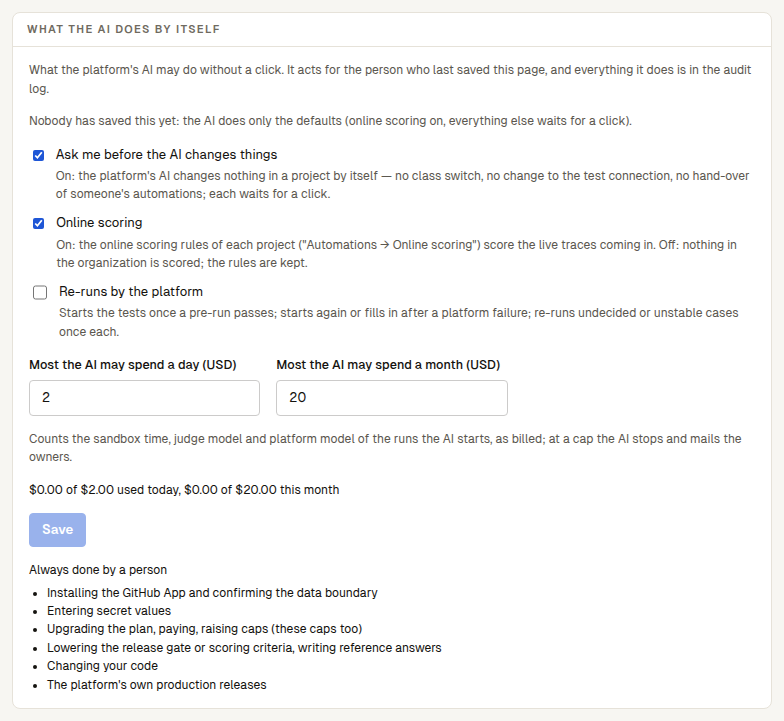
The AI acts for the person who last saved the page, through the same plan, billing and limit checks as that person's own click, and everything it does is in the audit log. "Most the runs the AI starts itself may spend a day" and "a month" (USD) count what the AI starts, as billed — apart from "The platform AI's daily limit" on the same page, which the platform sets and which holds all the platform AI spends; at a cap the AI stops and mails the owners. For the automatic runs of someone who left the organization, see when the person leaves.
Audit log
The "Audit log" tab lists every managed action in the organization, newest first: when, who, which action, on what, and from which IP address. It covers people's clicks that change, spend or launch something, and the platform's own actions, such as deleting a sandbox. Filter by "Action", and click "Earlier records" to page back. Only owners can read it. Lines are only ever added, and they are kept while the organization exists.
My CLI tokens
"My CLI tokens" lists the tokens reviewctl login saved on your computers, for this organization: each one's name, when you signed in, when it was last used and when it expires. A token stops working after 90 days unused, or 12 months after sign-in. reviewctl logout revokes it on the platform; if a computer is lost or a token leaks, revoke it here with the bin. Each person sees only their own.
Name and default language
The owner changes the organization's name and its default language under "Organization" → "Policy", above the policy. The default language is used for the platform's emails to the organization and for members who haven't chosen their own.
Language
- The web app: the "Language" switch in the navigation (中文 / EN). It is remembered in the browser and becomes your language for emails too.
- Emails go in the recipient's language; someone who never chose one gets the organization's default language (see above).
- The CLI and test runners:
REVIEWCTL_LANG=enorzh; see Command line. - The API: the
x-reviewctl-localeheader; see API and tokens.
Next steps
- Billing and usage: plans, the usage page and invoices.
- Sandboxes and limits: what the policy limits do.
- Security overview: access control and the audit log.